
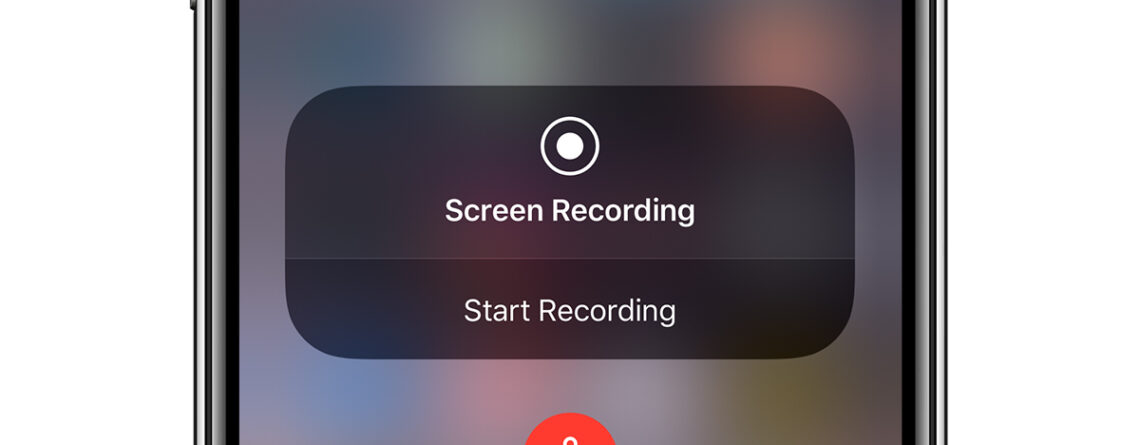
How to record your iPhone Screen – No app required
Top tips: how to record your iPhone screen – no app required
If your device is running on IOS 11 or later, you can record anything that’s on your screen. What’s better still, you don’t need to install any additional apps to do it.
Apple has included screen-recording technology into its devices – you just may need to enable it. Read on for our easy guide on how to record your iPhone screen.
Why would I want to record my screen?
There are loads of benefits to being able to record the screen on your iPhone. Perhaps you are playing a game and want to record and share something cool you’ve seen. Maybe you want to help a friend who doesn’t know how to use their phone; you could send them a tutorial video recorded from your screen.
Just remember, recording and sharing copyright material, even if it’s just a Phone recording is still illegal.
- Ensure that your phone is running on IOS 11 or later. We’ve got a guide on how to update your iPhone here.
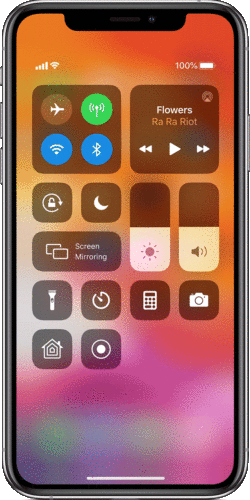
- Add screen recording into your control centre – go to Settings > Control Centre > then tap the
 next to Screen Recording
 - On iPhone 8 or earlier, swipe up from the bottom edge of the screen or on iPhone X or later, swipe down from the top right corner of the screen.
- Press deeply on the
 button to toggle mic on/off or change record save location
 - Tap Start Recording then wait for the three second countdown.
- To stop recording, either tap the red status bar at the top of your iPhone or open control centre and tap the
 Button
 - Go to the photos app to view your recording.
Some apps may not allow you to record sound while using the app and you can’t record screen whilst screen mirroring at the same time.


Leave a Reply