
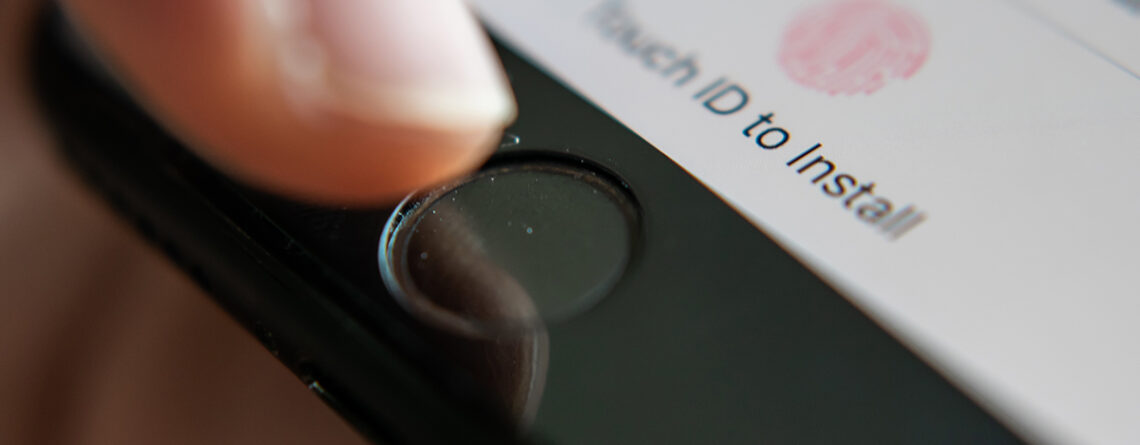
How to fix an unresponsive iphone home button
The home button on your iPhone is the most used button so it’s no surprise that it can suffer wear and tear. If you have just picked up your phone and found that the home button is not working or is unresponsive, you are not alone. Home button problems with iPhones are fairly common, that’s why we have created this guide on how to fix your home button when it is not working.
Top Tip 1: hard reset your iPhone
The first thing you should try before you go any further is hard restarting your iPhone. This is like taking out the battery of a device or unplugging it, except because the iPhone is a sealed unit, you can’t just unplug it. If you’re unsure, here’s how it’s done:
- On iPhone 6s or older – press and hold the lock button and home button together until the device turns off (around 8 to 10 seconds) then release.
- On iPhone 7 – press and hold the lock button and down volume down button at the same time until the device turns off (around 8 to 10 seconds) then release.
- On iPhone 8 or newer – press and release up volume, press and release down volume then press and hold the side button until the device turns off (around 8 to 10 seconds) then release.
Top Tip 2: clean the home button
If you had no success hard resetting the device, it’s time to give it a clean. It is to be expected that the home button area can collect dust and gunk. This can result in the home button becoming nonresponsive. The best thing to do is wet a cotton bud with a little bit of isopropyl alcohol and gently rub it around the crack between the home button and screen then wait for it to dry. You may have to repeat this step depending how much gunk is in there.
Top Tip 3: restore your iPhone.
There may be a software glitch that is causing you to have problems with your home button and may need restoring. Please follow these instructions carefully as failure to do so could lead to data loss if the phone is not backed up.
First of all, ensure your iPhone software is up to date and running on the latest iOS. A glitch in out of date iPhone software could have caused your problem.
Secondly, ensure your data is secure and backed up. You can do this either through iCloud or plugging your device into iTunes. We’ve written this handy guide on how to back up your iPhone here.
Finally, connect your iPhone to a computer with the latest version of iTunes, find your device and click Restore. iTunes will do the rest and install a fresh copy of iOS onto your device.
Top Tip 3: restore your iPhone.
There may be a software glitch that is causing you to have problems with your home button and may need restoring. Please follow these instructions carefully as failure to do so could lead to data loss if the phone is not backed up.
First of all, ensure your iPhone software is up to date and running on the latest iOS. A glitch in out of date iPhone software could have caused your problem.
Secondly, ensure your data is secure and backed up. You can do this either through iCloud or plugging your device into iTunes. We’ve written this handy guide on how to back up your iPhone here.
Finally, connect your iPhone to a computer with the latest version of iTunes, find your device and click Restore. iTunes will do the rest and install a fresh copy of iOS onto your device.
Top Tip 4: Use Assistive Touch.
A temporary solution if your home button has failed is to turn on Assistive Touch. This adds a virtual home button to your phones screen and can be used as a temporary measure before getting your device repaired.
To access assistive touch:
- Tap Settings on your home screen
- Choose Accessibility
- Select Touch
- Toggle Assistive Touch on
- Optional – under the Custom Actions heading, change single tap to “Home”, change double tap to “App Switcher”. This replicates the function of the original home button.
Some people can tolerate this temporary fix, some can’t. If you aren’t satisfied with this tip, it’s probably time for you to arrange getting that home button repaired.
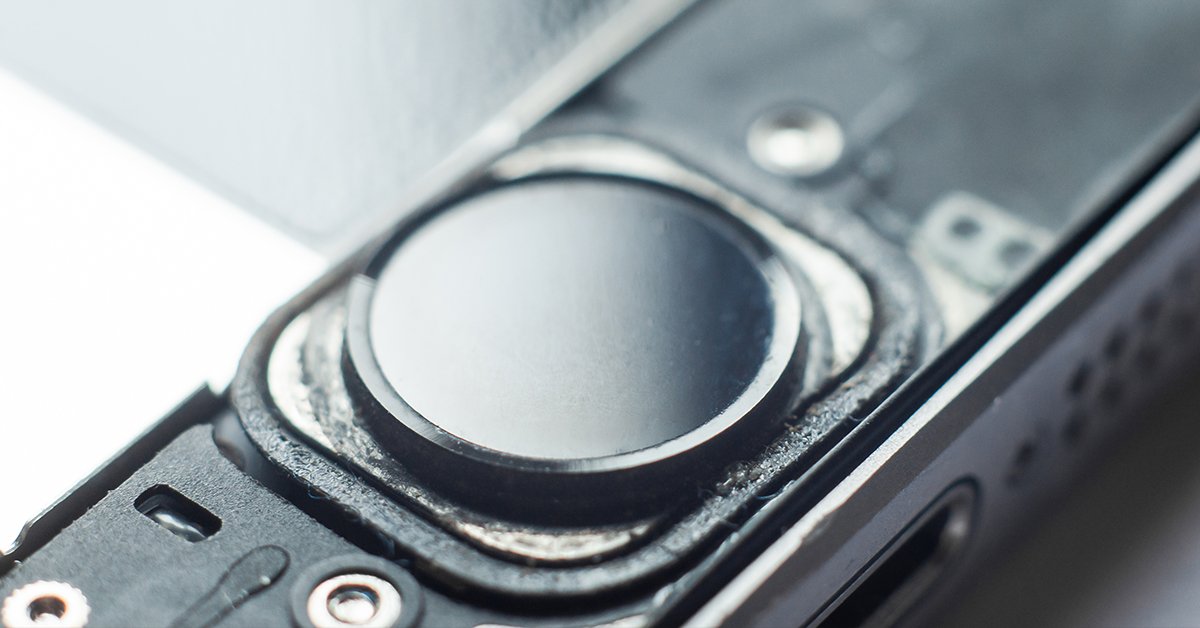
Top Tip 5: Repair your Home Button.
If the tips above have been no use to you and your home button is still not working, you’re going to want to start looking at home button repair. If you your iPhone is still within warranty, the Apple store may be able to solve your home button problem for free. If it has expired, they will be able to do it at your cost.
If your device is out of warranty, the best solution is to arrange your home button repair with iDoctor. We’re building the world’s biggest repair network and with our many trusted repair centres across the UK, there is always an expert nearby who can help. Our experienced technicians will diagnose and repair your home button using the best quality parts and with iDoctor 12-month warranty on this repair, you can trust that you’re in safe hands.
How much does home button repair cost?
As mentioned above, our expert technicians will diagnose and repair your home button for you, and have you back up and running in no time. Here’s our home button repair price list below:
| Device | Price |
| iPhone 4/4S – | £20 |
| iPhone 5/5S/SE – | £25 |
| iPhone 6/6S (including Plus) | £25 |
| iPhone 7/8 (including plus) | £35 |

Leave a Reply