

What to do when you forget your passcode on your iPhone or iPad
What to do when you forget your passcode on your iPhone or iPad or if you device is disabled
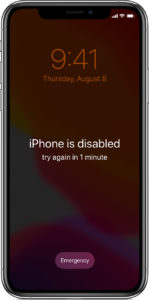
If you’ve forgotten your passcode, or if a message says that your device is disabled, here’s what iDoctor advises that you do.
If you put your try the wrong passcode too many times, a message will show on your device saying “device is disabled”. If you have forgotten or can’t remember your passcode, you will need to erase your device. This means you will lose all data and settings, including your passcode. Unless you made a backup before you forgot the passcode. Follow the steps below to access your phone when you have forgotten your passcode. Please note: the following steps will not help you to bypass the iCloud lock
Remove your old passcode
If you have backed up your device, don’t worry, you can restore your data. And settings after you have restored your device. If you have never backed up the device, you will not be able to save any data on the device.
- You are going to need a computer with iTunes to follow these steps. If you don’t have a computer, borrow one from a friend, or contact us for more help
- Make sure that your device isn’t connected to your computer, then choose your device below and follow the steps:
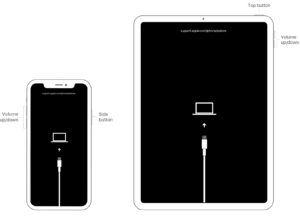
- iPhone X or later, and iPhone 8 and iPhone 8 Plus: Press and hold the Side button and one of the volume buttons until the power off slider appears. Drag the slider to turn off your device. Connect your device to your computer while holding the Side button. Keep holding the Side button until you see the recovery mode screen.
- iPad with Face ID: Press and hold the Top button and either volume button until the power off slider appears. Drag the slider to turn off your device. Connect your device to your computer while holding the Top button. Keep holding the Top button until you see the recovery mode screen.
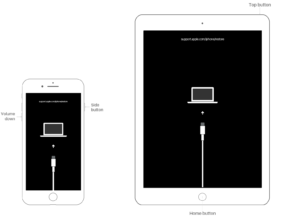
- iPhone 7, iPhone 7 Plus and iPod touch (7th generation): Press and hold the Side (or Top) button until the power off slider appears. Drag the slider to turn off your device. Connect your device to your computer while holding the Volume down button. Keep holding the Volume down button until you see the recovery mode screen.
- iPhone 6s or earlier, iPod touch (6th generation or earlier), or iPad with Home button: Press and hold the Side (or Top) button until the power off slider appears. Drag the slider to turn off your device. Connect your device to your computer while holding the Home button. Keep holding the Home button until you see the recovery mode screen.
- Locate your device on your computer. When you see the option to Restore or Update, choose Restore. Finder or iTunes will download software for your device. If it takes more than 15 minutes, your device will exit recovery mode and you’ll need to repeat steps 2-4.
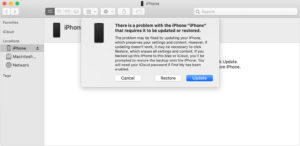
- Wait for the process to finish. Then you can set up and use your device.
Need more help?
If you can’t update or restore your device using recovery mode, or you can’t use recovery mode because of broken or stuck buttons, contact iDoctor. We will be happy to help you with your problem.



Leave a Reply