
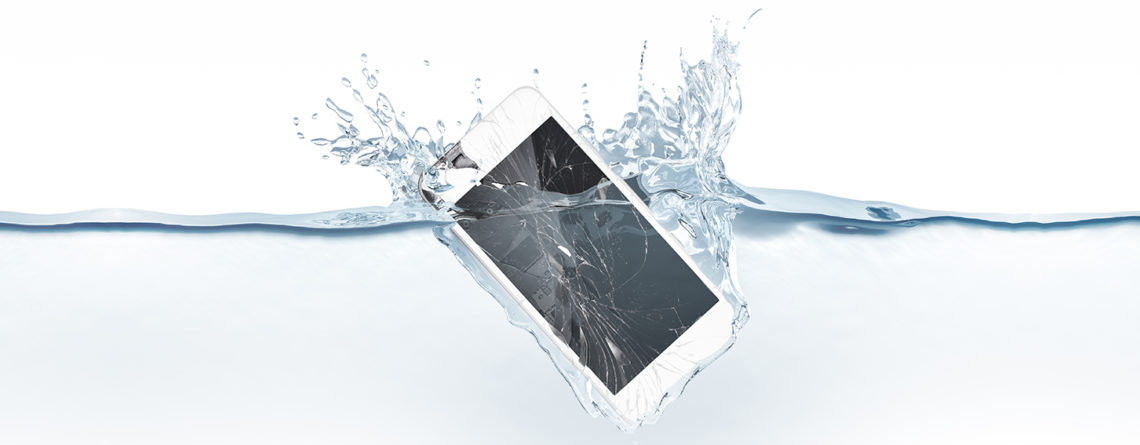
8 Steps to save your phone from water damage
8 steps to save your phone from water damage.
No matter how smart your phone is, it doesn’t know how to swim.
Most people know that feeling of sheer terror when you drop your shiny smartphone or tablet in water, the world stops for a second and you want to scream! Whilst it might seem like your device is unsalvageable, iDoctor has written this handy step by step guide on how you can save your water damaged phone from potentially catastrophic water damage.
Does water damage void my warranty?
While dropping your smartphone or tablet into liquid typically voids the manufacturer’s warranty, it doesn’t mean it’s the end for your iPhone or Android device, if you have tried the steps below and have had no success, book your water damage diagnostic with iDoctor online.
Signs of a water damaged iPhone
Signs of water damage can come in many forms and can sometimes not reveal damage until further down the line. Common problems include:
- iPhone not turning on after water damage.
- iPhone stuck in boot loop
- iPhone overheating.
- Speaker or microphone not working
- iPhone white screen of death

Whilst the above are a common list of problems, the signs may be less obvious, sometimes a water damaged iPhone may display error messages when using or turning on the device such as “This accessory is not made to work with iPhone” or “Charging is not supported with this accessory”. These can indicate problems with the charger port after exposure to liquid.
Apple water damage indicator locations
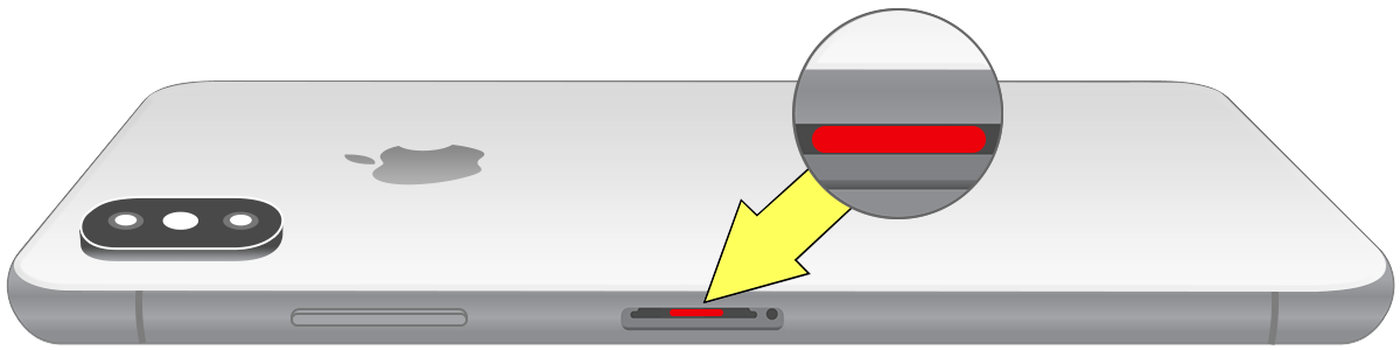
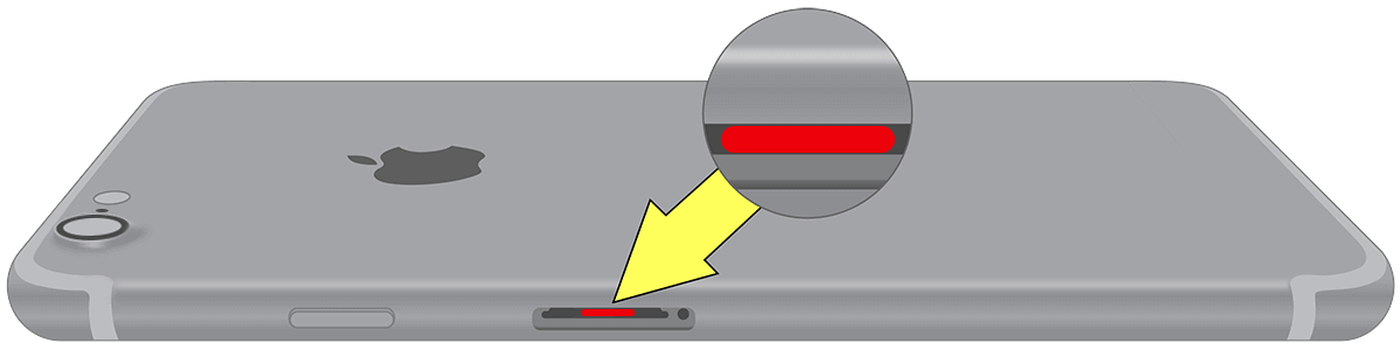
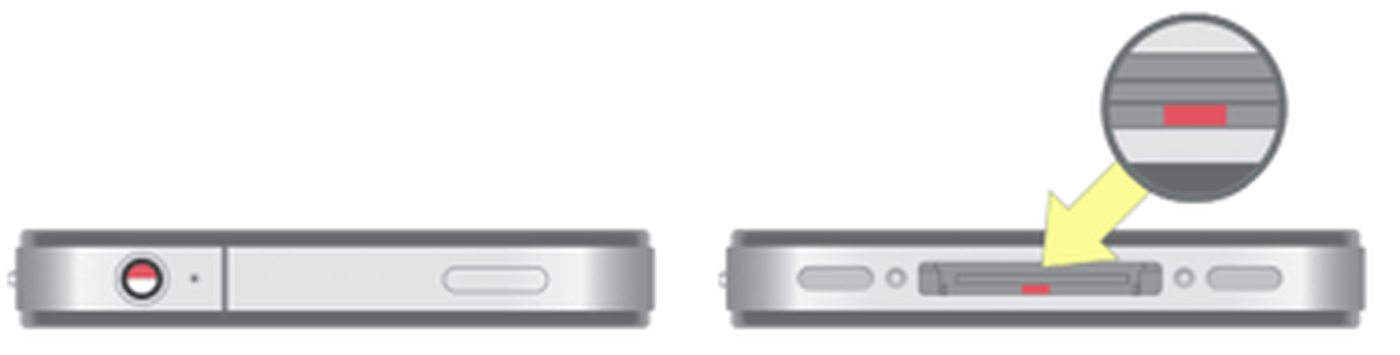
Apple has kindly included easy(ish) to find liquid damage indicators in their devices to help you know if your phone has water damage, just take a look at the diagrams below which show where the water damage indicators are for each device:
On the iPhone X, XS, XS Max, 11, and 11 Pro; the water damage indicator is located in the sim tray:
On the iPhone 6, 6s, 7 and 8 series; the water damage indicator is located in the sim tray:
On the iPhone 5S, SE, and 5 series; there is a round liquid indicator located in the sim tray:

On the iPhone 4, 4S and 3G series; The water damage indicator is located in two places, inside the charging port and within the headphone phort:
Steps to try to fix a water damaged smartphone:
| 1. If your phone takes a spill, remove it from the liquid immediately. The longer it stay there, the more liquid will seep into the crack around your screen or into various inlets.
2. Immediately turn the power off on the device and leave it off! (it sometimes tempting to try and turn it back on to see if it still powers on) 3. Remove any protective casing for your device. 4. If possible, open the back of the phone and remove the battery, SIM card, and microSD card. If you cannot open the phone, skip this step. 5. Use a cloth or paper towel to dab your phone dry. Do not rub the phone dry, because it could accidentally push liquid into the phone’s more sensitive parts. If the phone was completely submerged, sometimes vacuuming around the phone’s cracks and openings to suck more water out. |
6. Resist the urge to bake your phone in the sun. Instead, Keep it in a cool, dry place.
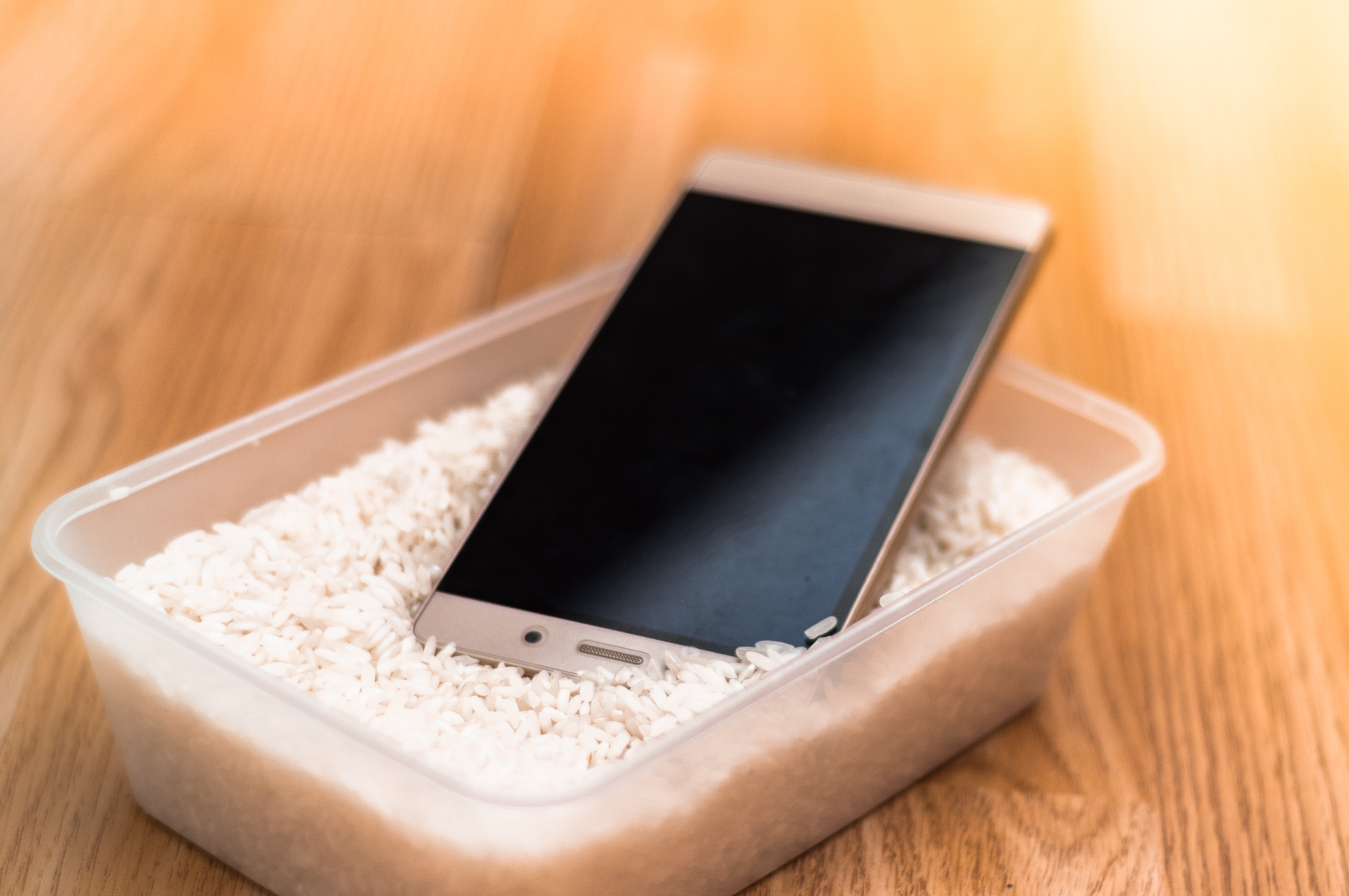
7. Do not put your phone in a bag of rice, this is a myth, but silica gel packets have proven to be much more effective. Fill a plastic zip-top bag with silica gel and bury the phone in the bag. Leave your phone in the bag for at least 24-48 hours
8. After you’ve allowed your phone to fully dry, switch it on. If it doesn’t turn on right away, try charging it to see if that makes a difference.
If your phone turns back on, great! Still, keep an eye on it over the next week or so, as sometimes certain features won’t work the way they used to.
Will I lose my photos and data after water damage?
It’s always best practise to keep your device backed up whether using iTunes or an iCloud back up, the latter being the best option as it’s the easiest and safest way of keeping your back up up to date.
If the phone has not been backed up, it can be a little more difficult to recover the data and may need third part recovery software. This can be carried out in our trusted repair centres by iDoctor’s highly experienced technicians.
If it has been backed up, here’s how to recover your data to your newly fixed smartphone:
Restore from an iCloud back up
- Ensure your phone or device is up to date with the latest IOS software
- Check that you have a recent back up to restore from. Go to Settings > [your name] > iCloud > Manage Storage > Backups. Then tap a device listed under Backups to see the date and size of its latest backup.
- Go to Settings > General > Reset, then tap ‘Erase All Content and Settings’.
- On the Apps & Data screen, tap Restore from iCloud Backup, then sign in with your Apple ID.
- Proceed to ‘Choose backup’, then choose from a list of available backups in iCloud.
Restore from iTunes
- Plug your phone into your computer and open iTunes.
- Click on your device when it appears in the menu.
- Click restore back-up.
Tap into our expertise
If you have tried all the above and still have no success, iDoctor can help. We are building the world’s biggest network of phone repair specialists, book your water damage diagnostics with iDoctor now and know that you are in safe hands. Our trusted technicians will evaluate the damage and advise on how it is best to proceed.
How much does iPhone water damage repair cost?
It’s very difficult to put a fixed price of water damage repair, we charge a very reasonable diagnostic charge of £20 per device and you can be assured that your device is in safe hands with our highly qualified and experienced technicians. Book your repair online today.

Leave a Reply